
Virtual Staging

Ordering a Virtual Renovation with roOomy

2
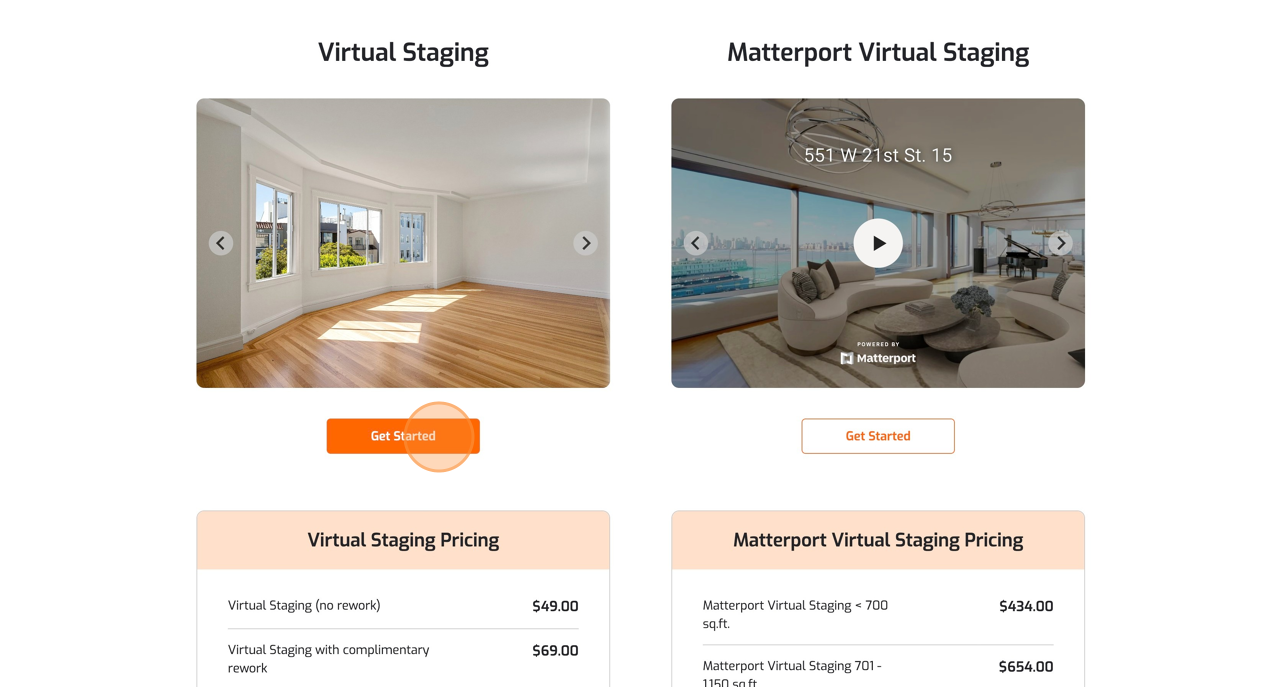
Click “Get Started”
Screenshot for step 2
3
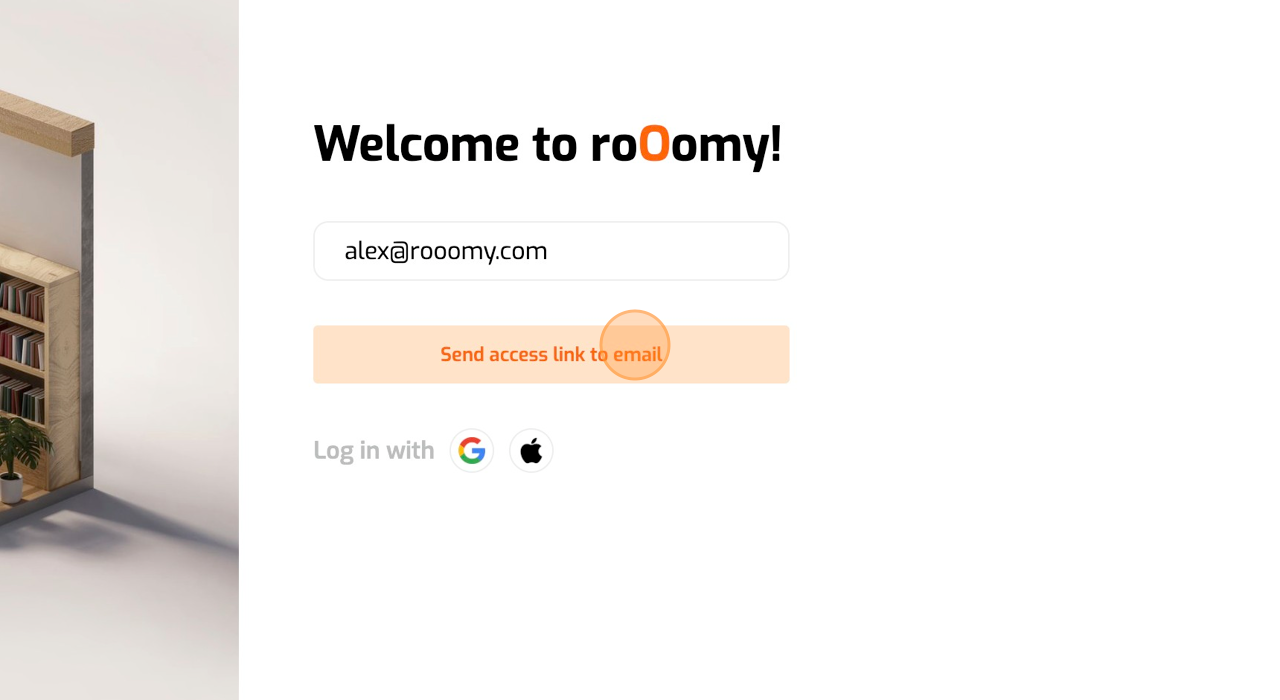
Enter your email address and click the “Send access link to email,” or log in with Google or Apple.
Screenshot for step 3
4
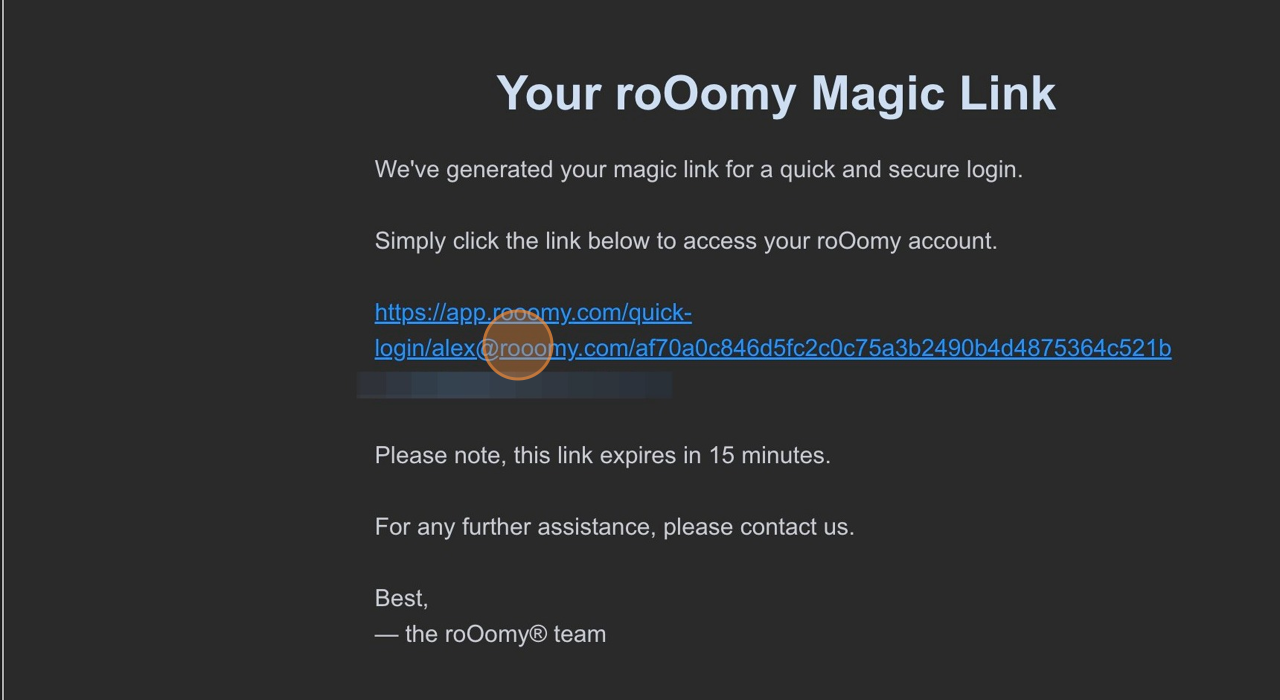
Check your email and click the link to log in. If your email provider doesn’t allow you to click the link, you may need to copy the entire link and paste it into a new tab.
Screenshot for step 4
5
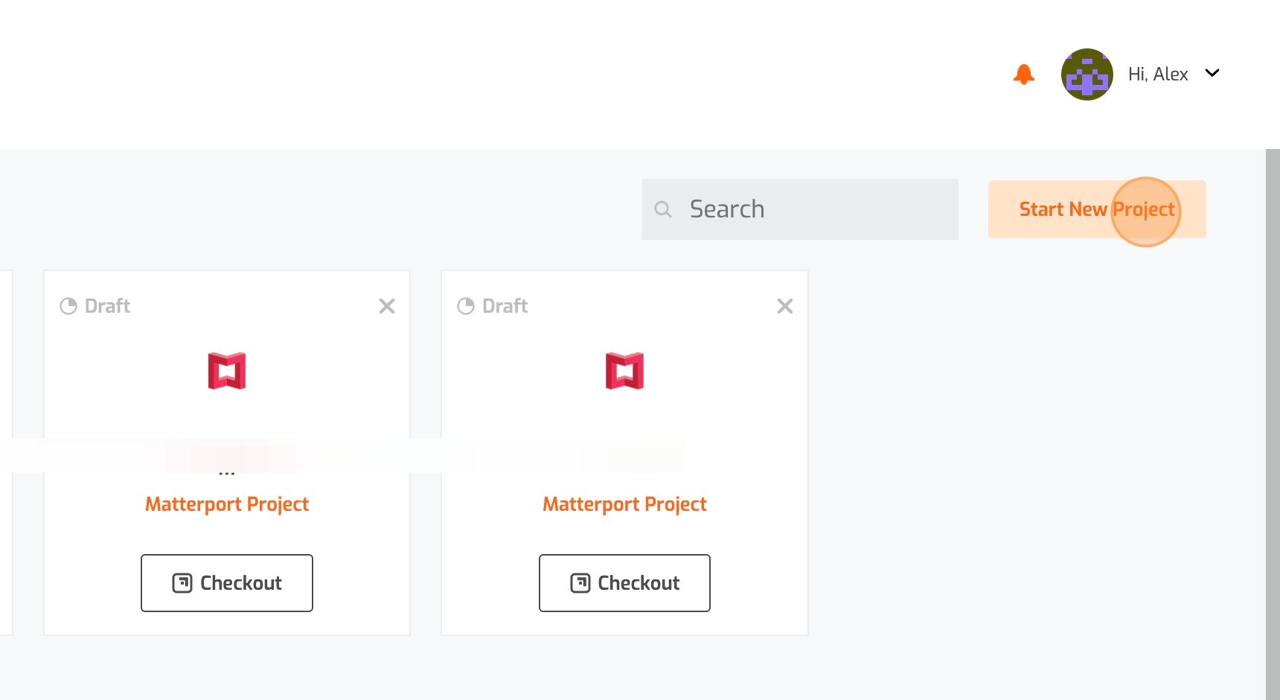
Once in the app, click “Start New Project”
Screenshot for step 5
6
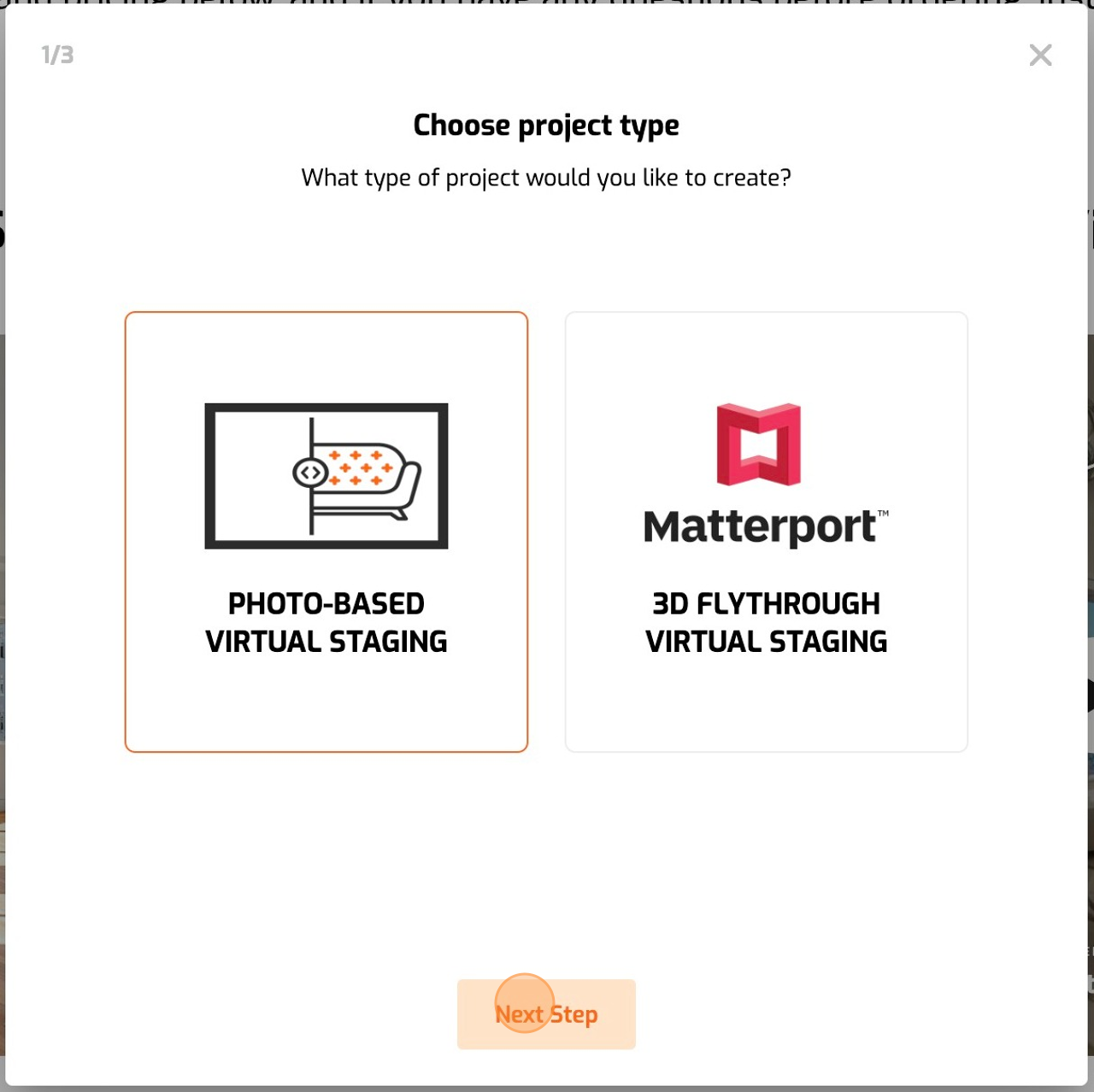
Select your project type. For this project, choose Photo-Based Virtual Staging and click “Next Step”!
Screenshot for step 6
7
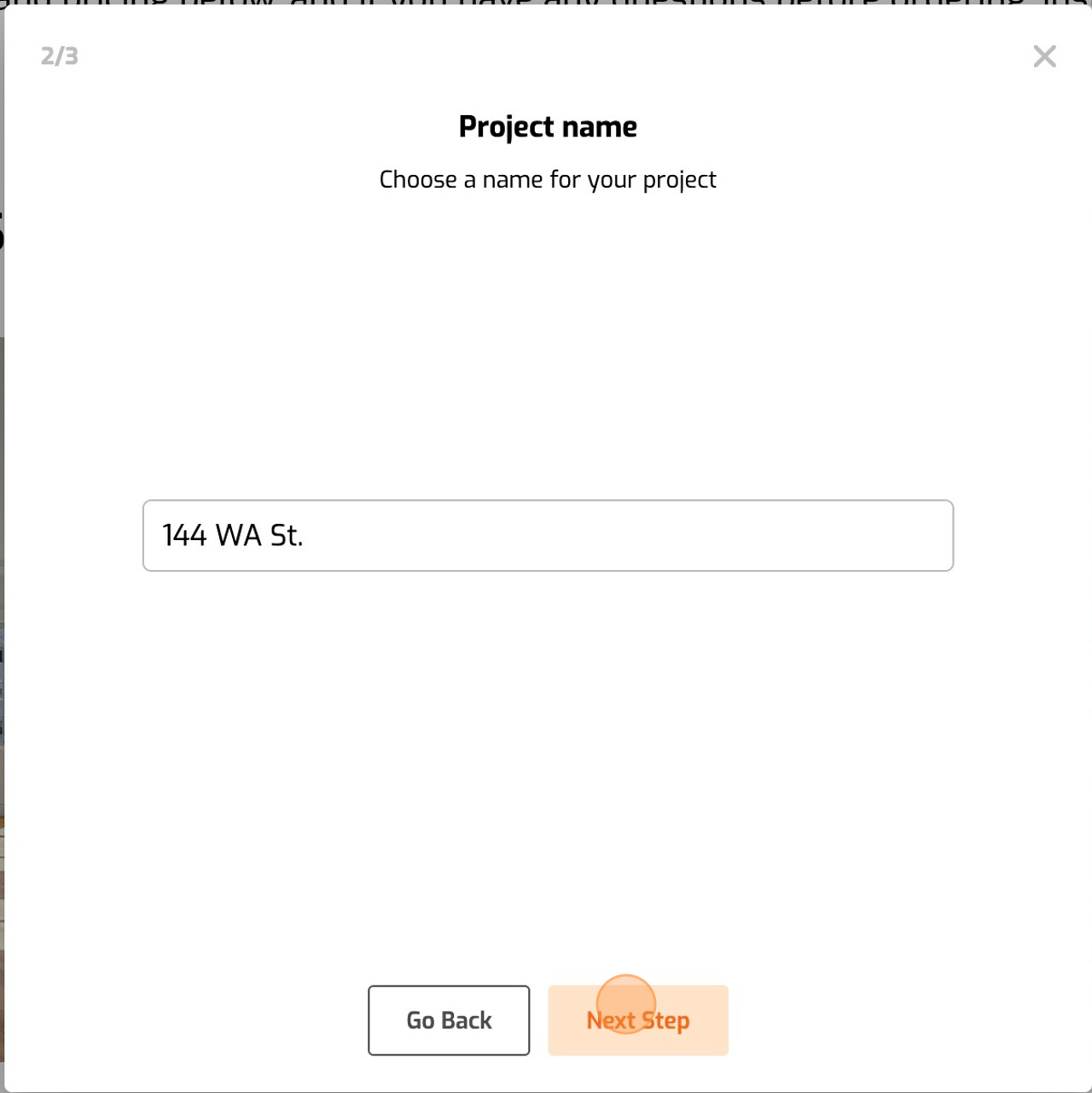
Choose a name for your project (typically the property address) and click “Next Step”
Screenshot for step 7
8
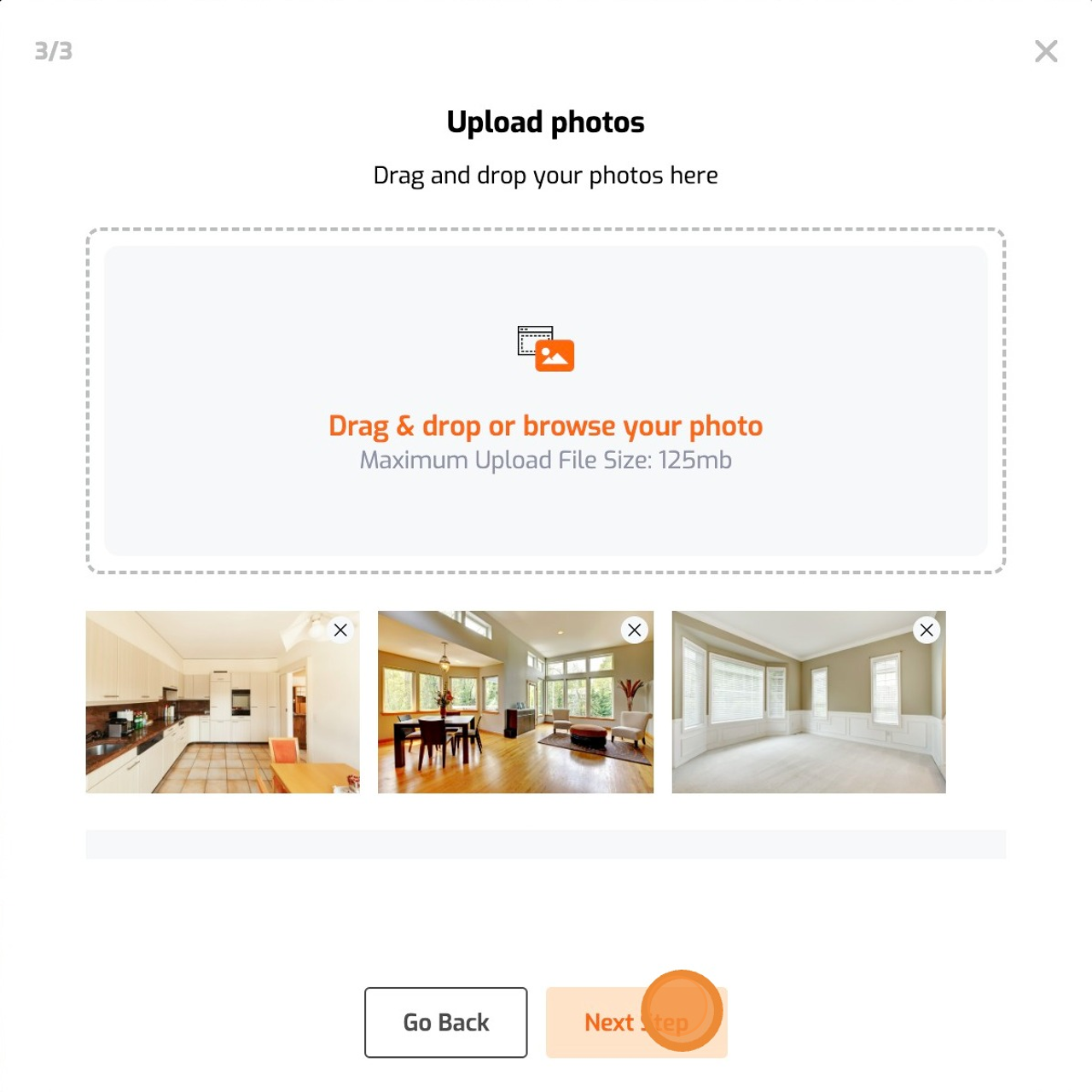
Upload the photos that you’d like to virtually stage. If you’re not sure which ones you want to stage, don’t worry; we recommend uploading all the photos that you’re considering staging, as you’ll be able to easily remove them on the next step if you change your mind.
Screenshot for step 8
9
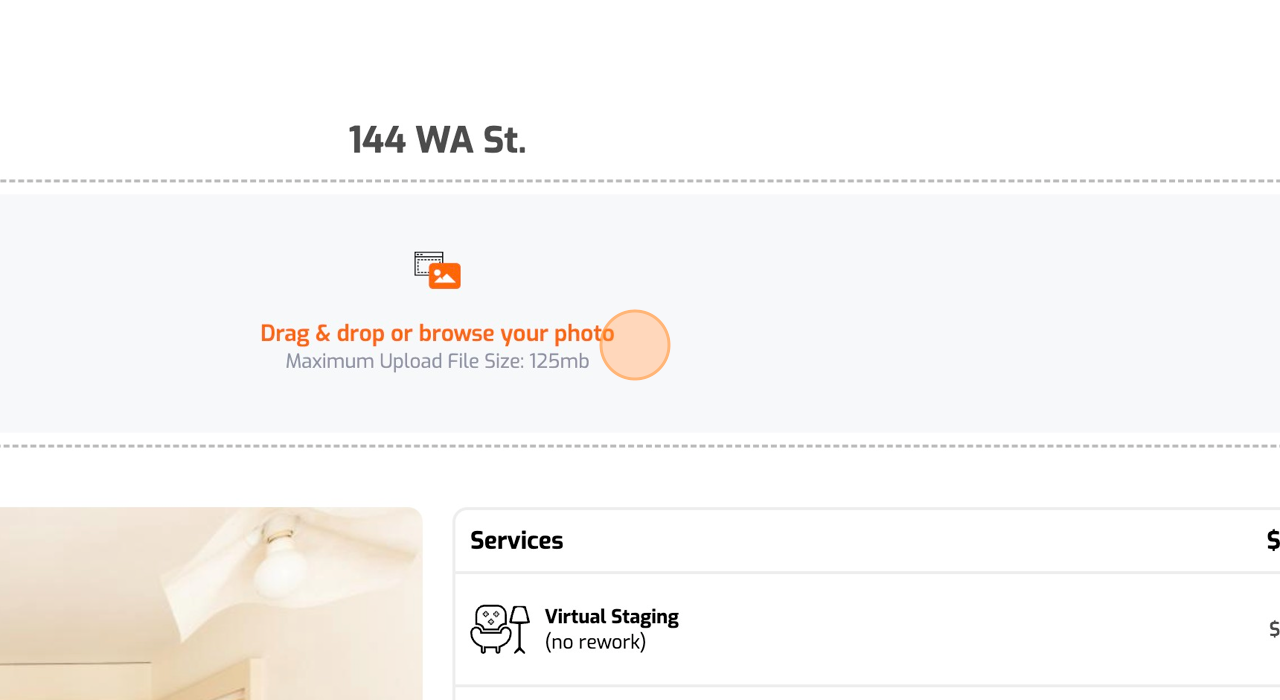
If you would like to upload more photos, simply drag and drop them or click the box below the project name.
Screenshot for step 9
10
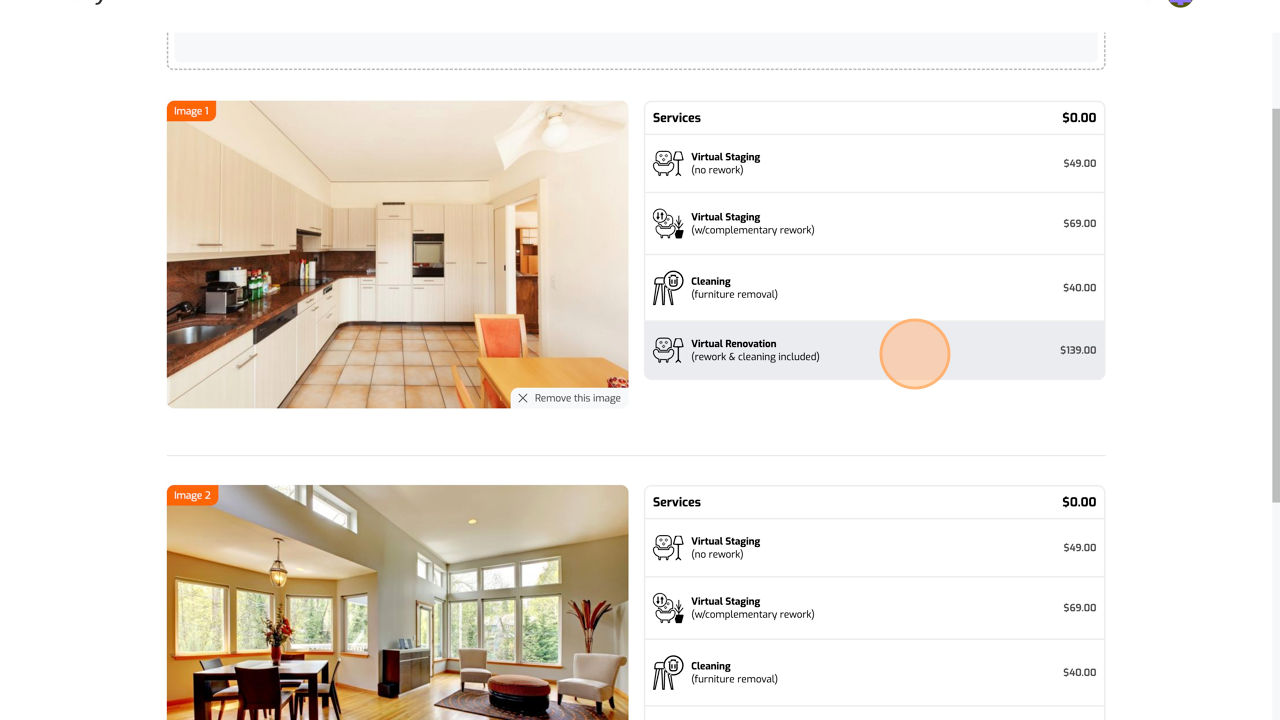
You’ll be able to select one or more services from those offered. For example, if you’d like us to add a new kitchen, change the floors, wall colors, and add new furniture, you would select our Virtual Renovation services, which come with cleaning, staging, and complimentary reworks.
Screenshot for step 10
11
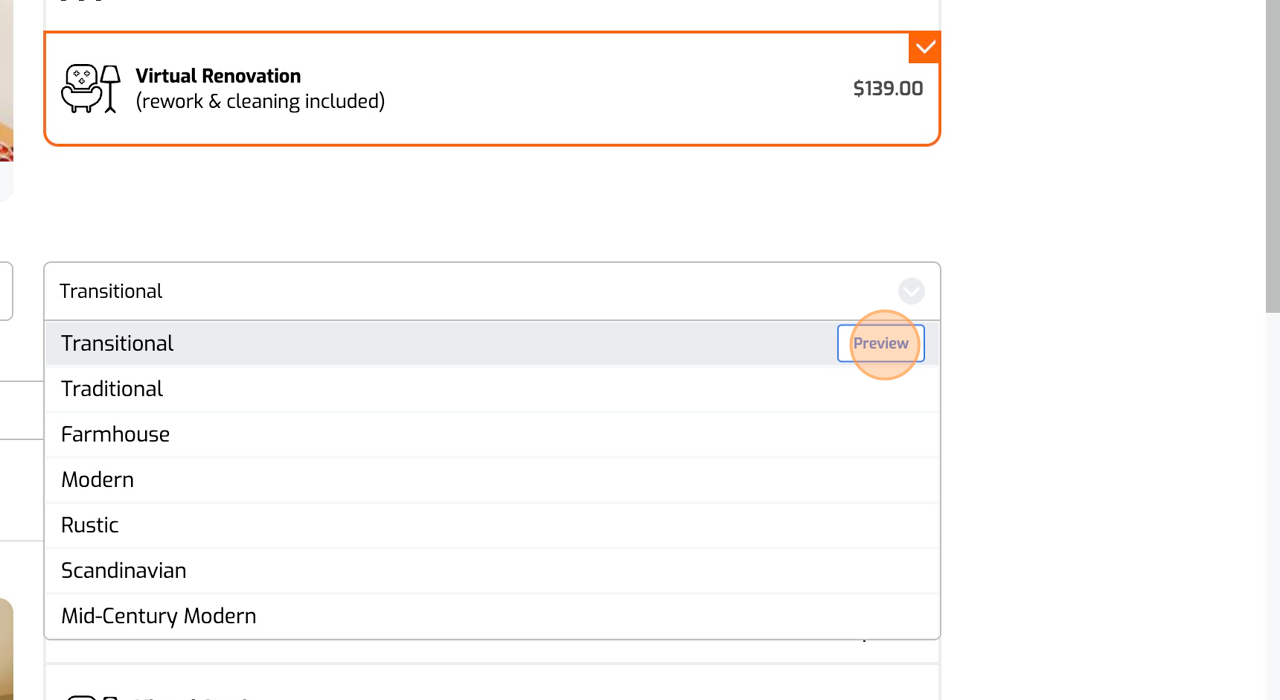
When choosing a Design Style, you can hover over the style and click the “Preview” button on the right to get a better look at each design style.
Screenshot for step 11
12
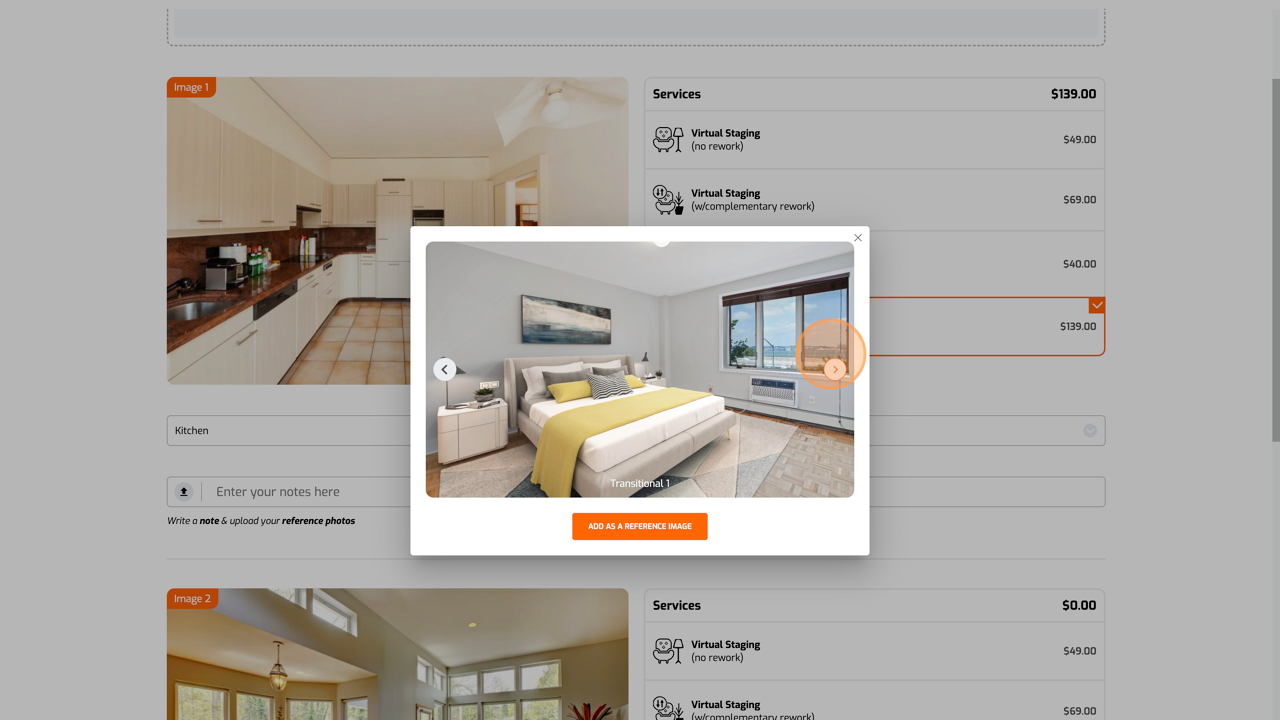
Click the arrows to move through the examples, and you can also add any photo as a reference image for our designers.
Screenshot for step 12
13
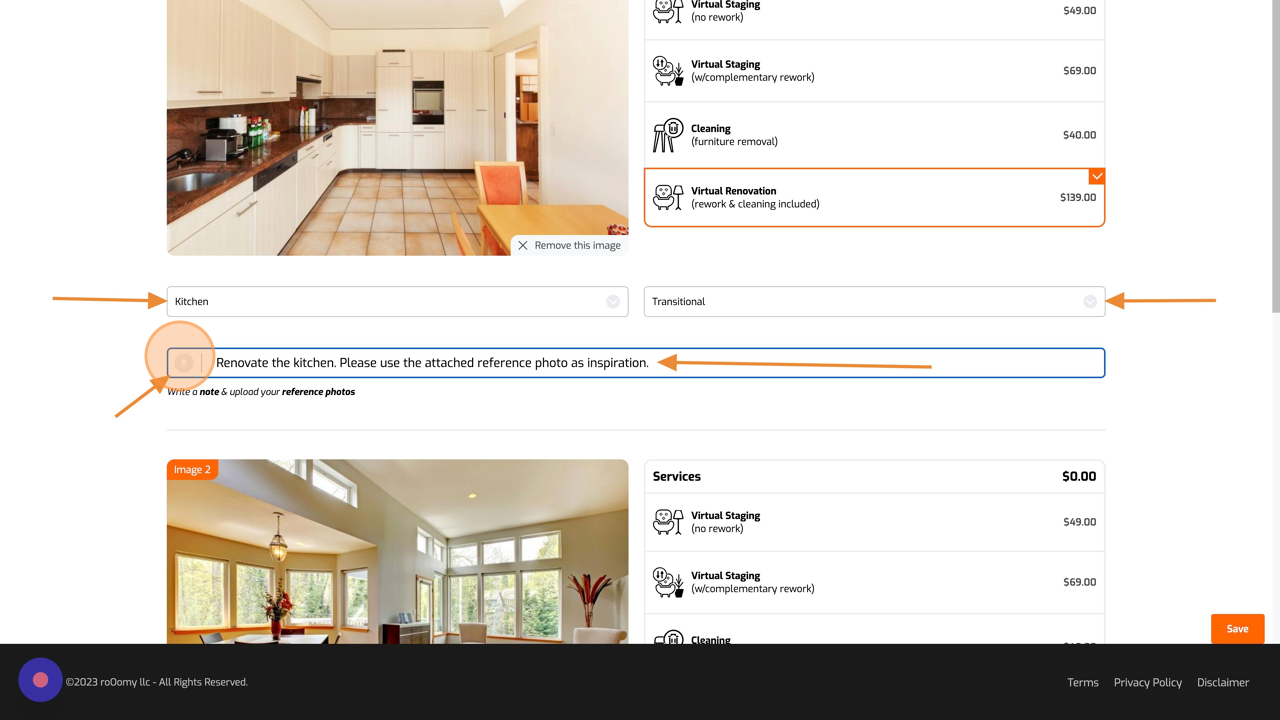
Please ensure that you select both the Room Function and Design Style for each photo, as these are mandatory fields.

Alternatively, you can also add a description for each photo and upload reference photos for our designers.
Screenshot for step 13
14
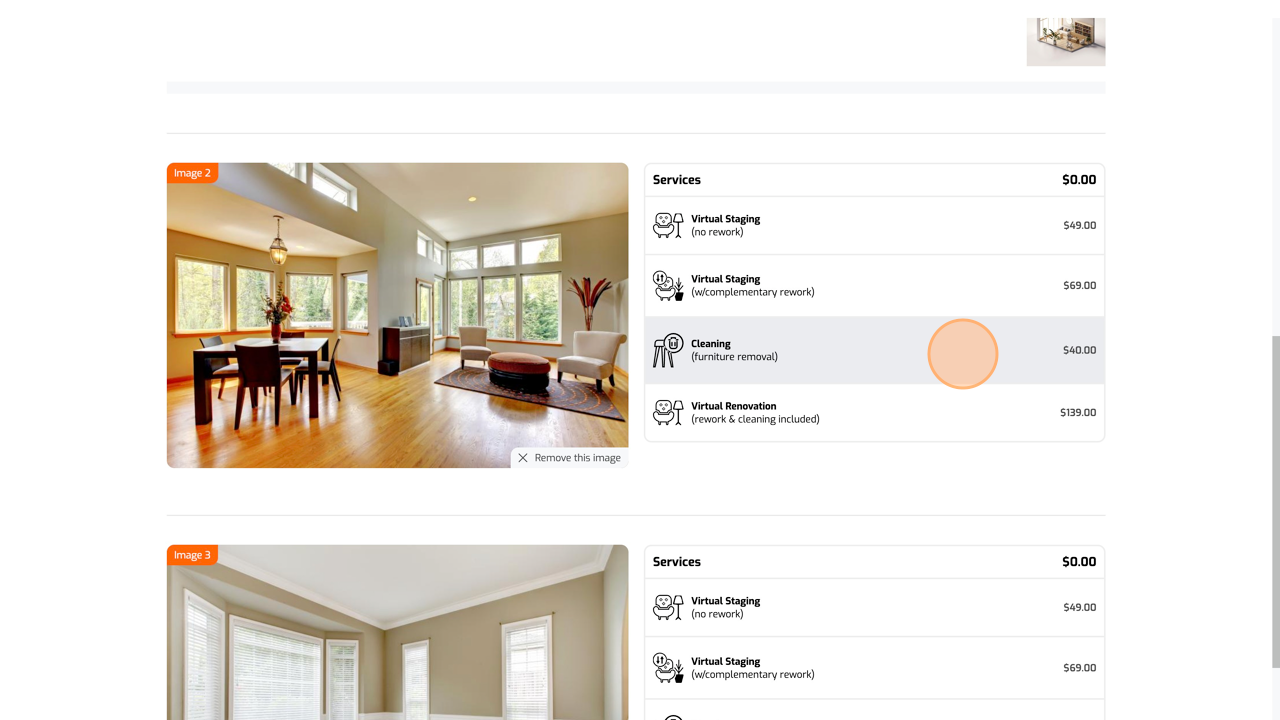
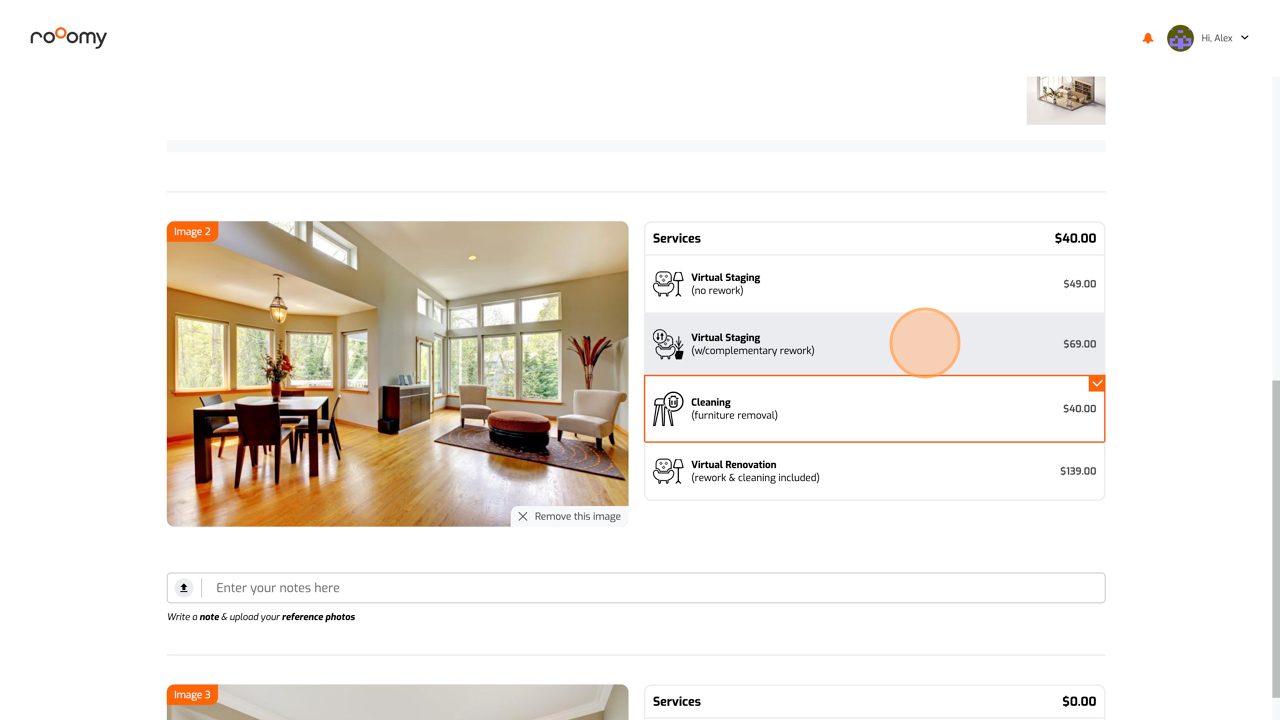
Should you need us to remove furniture, please select our “Cleaning” service.
Screenshot for step 14
15
You can also select one of our Virtual Staging services if you’d like us to both clean and stage the photos.
Screenshot for step 15
16
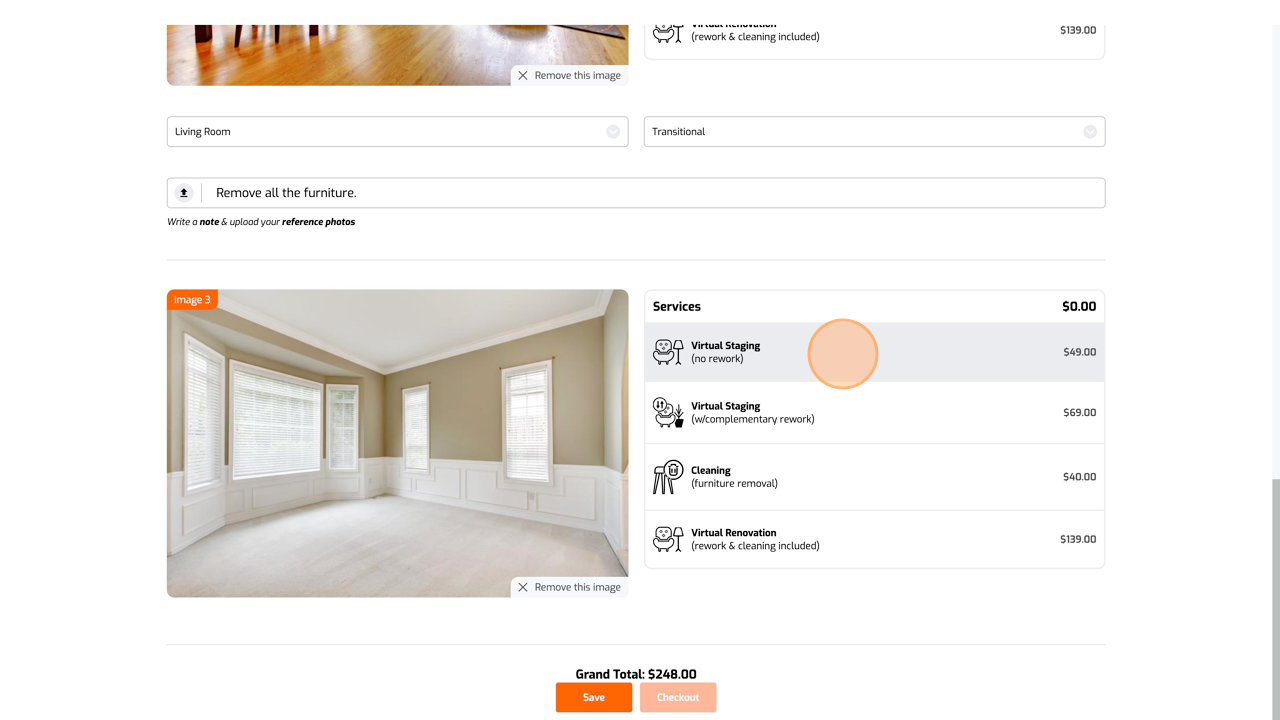
If you need basic staging and don’t think you’ll need any revisions, you can choose our Virtual Staging (no rework) service.
Screenshot for step 16
17
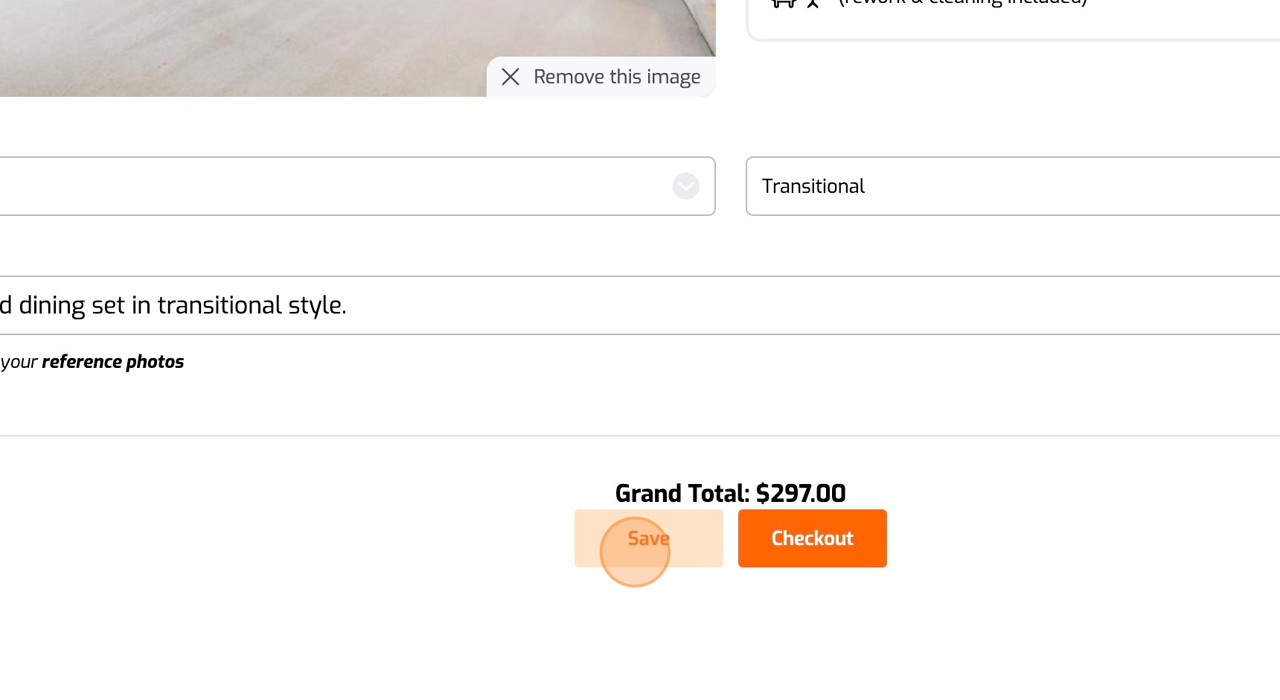
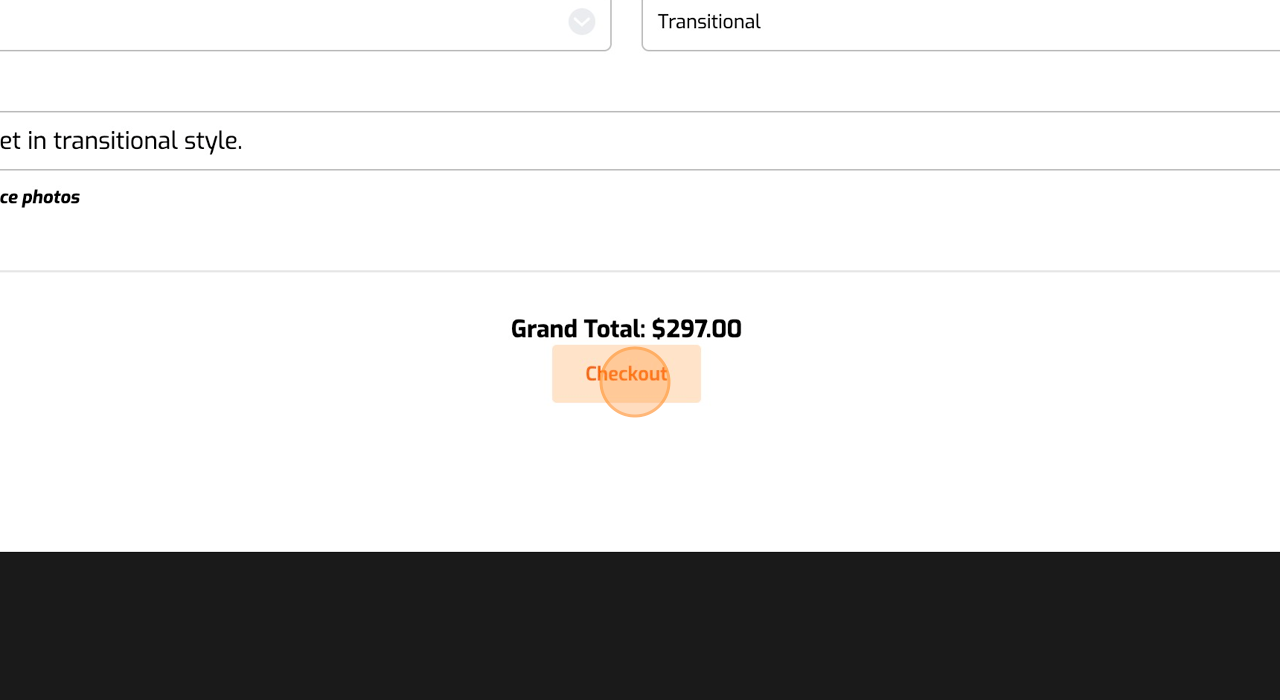
Once you’ve added all the required services, you can save your work or click Checkout to save and proceed to the payment page. If you’ve forgotten to fill out some of the required fields, just hover over the Checkout button with your mouse and you’ll see a message telling you which required information was missed.
Screenshot for step 17
18
Click “Checkout”
Screenshot for step 18
19
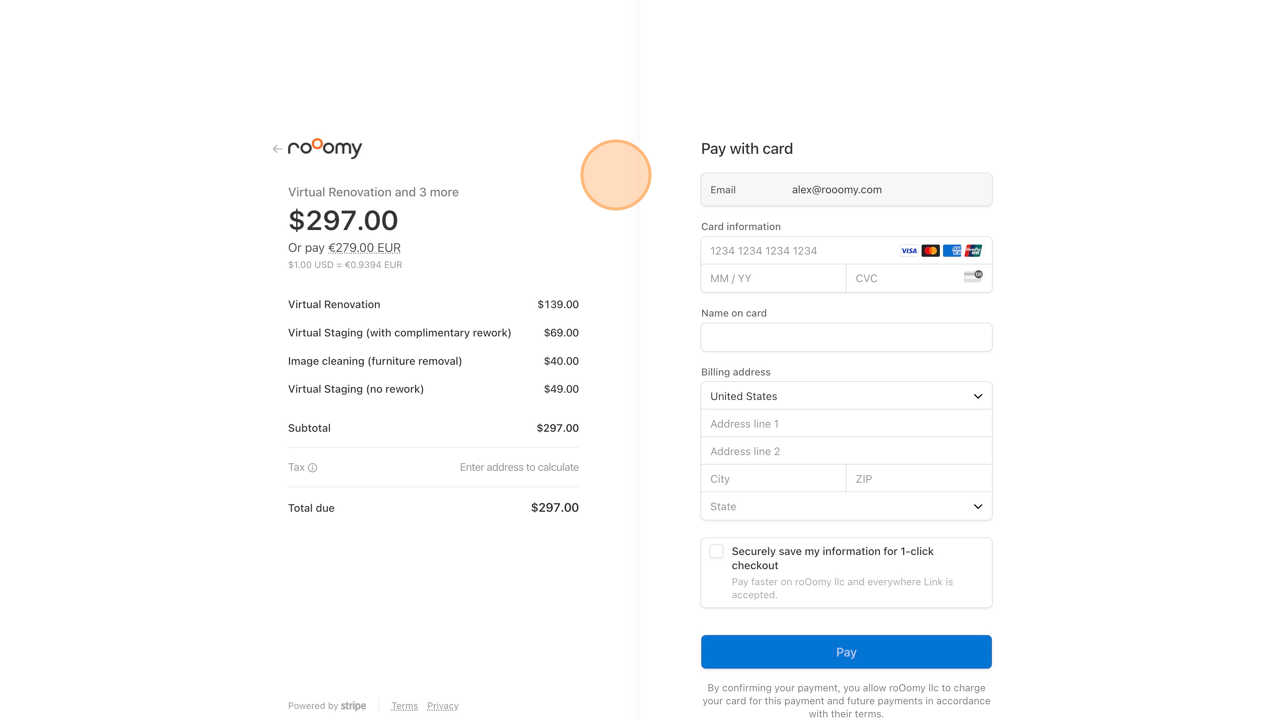
We’ll redirect you to our payment processor where you can get a breakdown of the services you ordered and the total cost.
Screenshot for step 19

Ready to Get Started?

Get started by placing your order today, or contact us to discuss your project with one of our Matterport Virtual Staging specialists.