
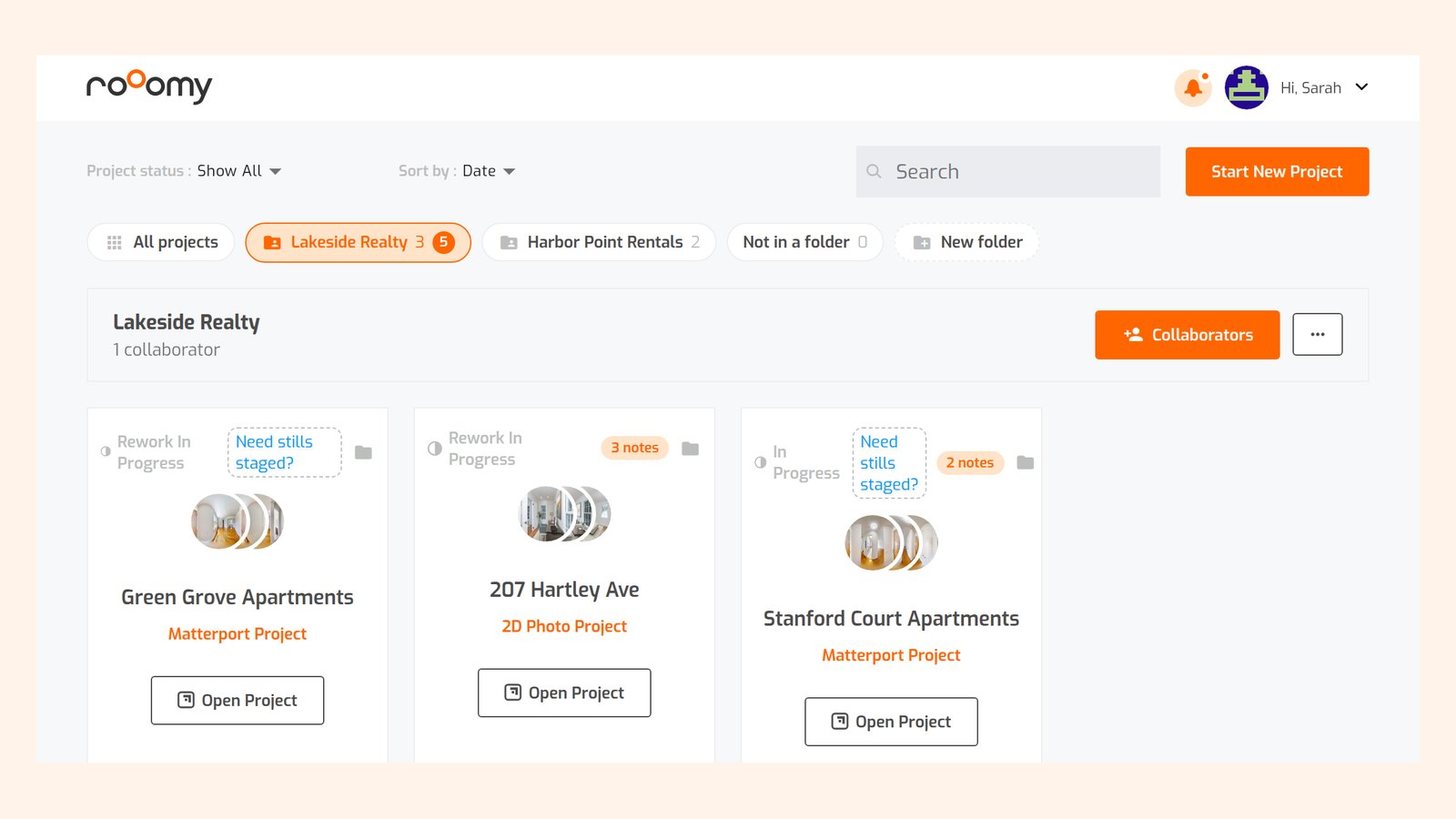
Many roOomy customers order staging for more than one client: a photographer working for several brokerages, an agent with a team, or a property manager looking after different buildings. Until now, every project sat in one list, and sharing the results meant downloading photos and emailing them around.
Folders and collaborators fix that. You group projects into a folder for each client, invite the people who need to see them, and let them leave revision notes. You stay in control: nothing reaches our design team until you have reviewed it and sent it.
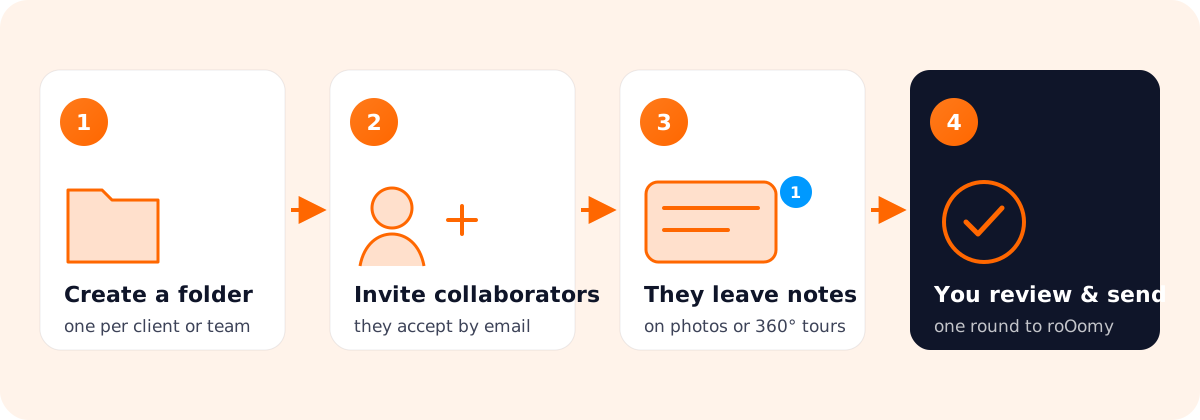
1. Create a folder for each client
Log in to the roOomy app and open your project list. Above your projects you will see a row of folders. Click New folder, give it a name (the client, the brokerage or the building) and you are done.
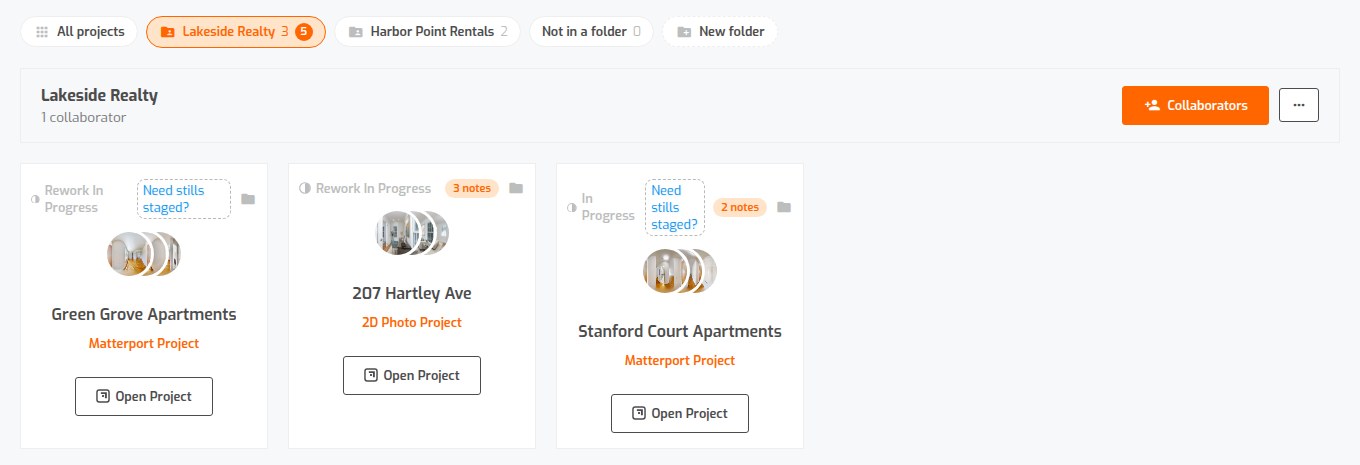
To move a project into a folder, click the small folder icon on the project card and pick the folder, or create a new one from the same menu. A project can live in one folder at a time, and you can move it or take it out of a folder whenever you like. All projects always shows everything, and Not in a folder shows what you have not sorted yet.
2. Invite collaborators to the folder
Open a folder and click Collaborators. Type the person’s email address and click Send invite. They get an email with a link; they log in or create a free roOomy account and accept the invite. While the invite is pending you can also copy the link and send it yourself.
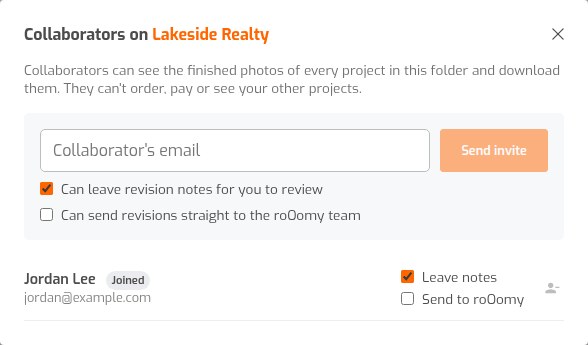
Collaborators see every finished project in the folder, including projects you add later, and they can download the photos. They cannot order, pay, change your projects or see anything outside the folder. To remove someone, click the remove icon next to their name and their access ends straight away.
3. Collaborators leave revision notes
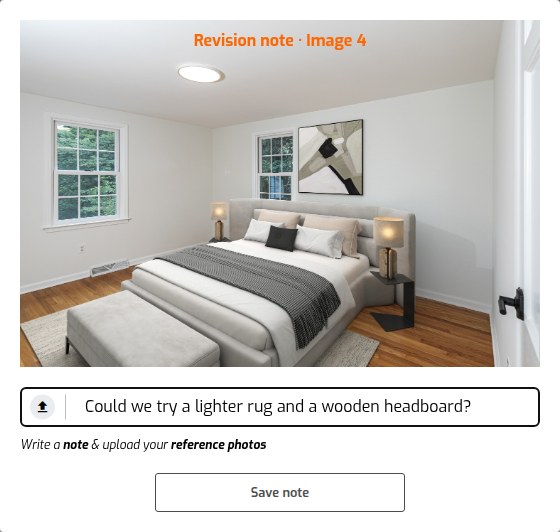
When a collaborator opens a project, they see Leave a revision note under each photo instead of the usual rework button. They describe the change, add reference photos if they have them, and save the note.
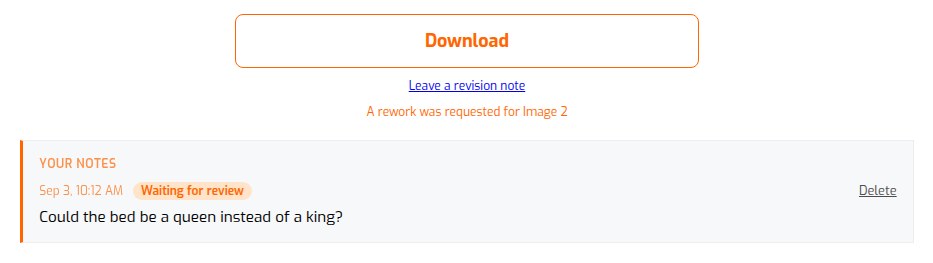
Their notes are listed under the photo with a status, so they always know where things stand: Waiting for review, Sent to roOomy or Not sent.
4. Review the notes and send them to roOomy
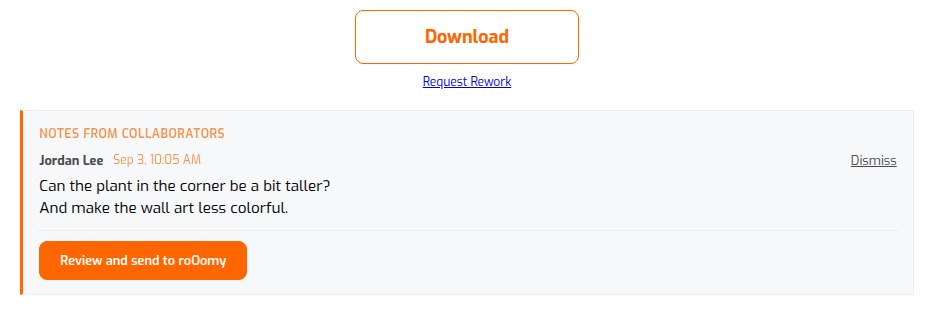
You get an email when a collaborator leaves a note, and the project card shows how many notes are waiting. On the project page, each photo lists the notes with the collaborator’s name. Dismiss the ones you don’t want, then click Review and send to roOomy. The notes are combined into one revision request that you can edit before it goes to our designers.
This keeps feedback in one place and avoids conflicting requests: our team works on one revision round per photo at a time, so it pays to collect everyone’s comments first. The usual rework rules apply; reworks are included when the photo was ordered with complimentary rework, as described in the virtual staging order and design workflow.
Matterport tours work the same way
For Matterport virtual staging, collaborators can review the key scan points too. They double-click anywhere in the 360° view to pin a note, exactly where the change is needed, and save their notes for you.
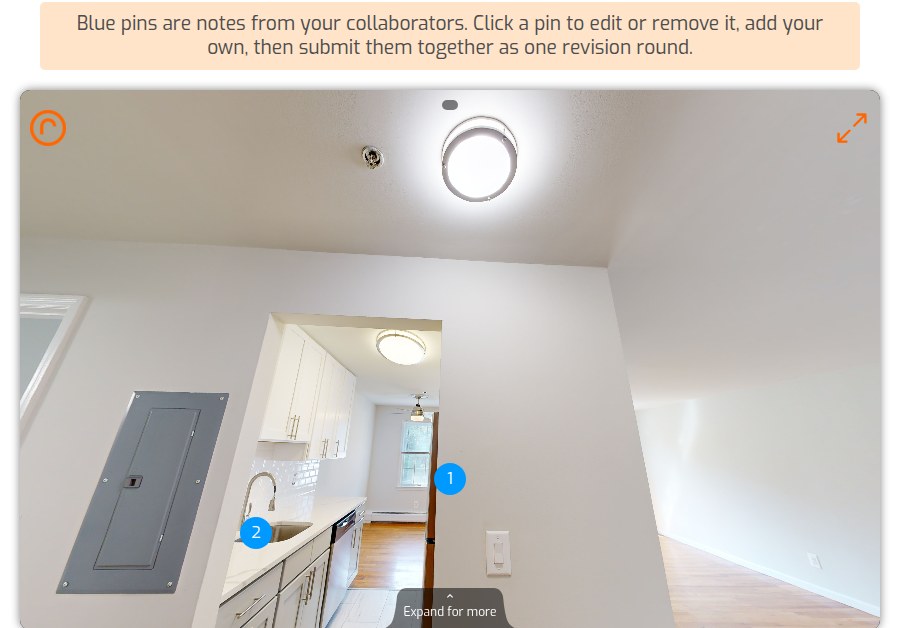
Approving the key scan points stays with you as the account owner.
Should collaborators send revisions directly?
For each collaborator you can switch on Send to roOomy, which lets them request reworks without going through you. We recommend keeping this for the account owner, so feedback doesn’t cross and every round is one you have agreed to. If you do turn it on, the app asks you to confirm first.
Tips for working with clients
- One folder per client or building. It keeps access simple: invite the client once and every new project in their folder is shared automatically.
- Invite the person who signs off. Notes from the decision maker save a revision round.
- Tidy up when a job ends. Remove collaborators from a folder you no longer share; their access ends straight away and your projects stay in your account.
Try it on your next project
Folders and collaborators are included with every roOomy account at no extra cost. Log in to the roOomy app to create your first folder, or see the pricing and order page to start a new project.